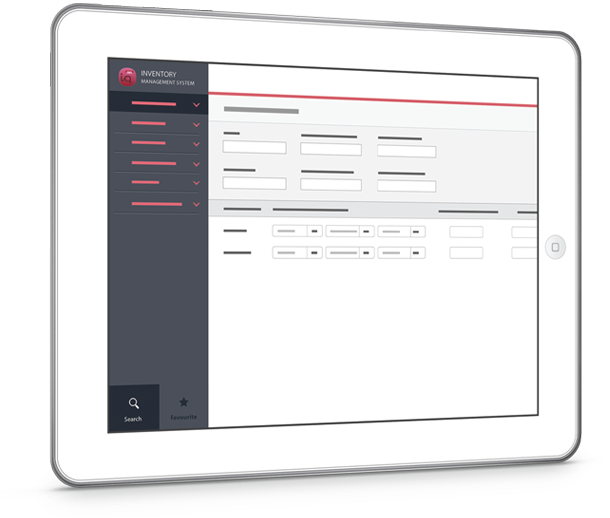

Netiquette Inventory Management System offers a comprehensive set of purchases, sales to inventory management. Purchase and sales modules have the capabilities that helps fast-tracks your order-to-cash process by eliminating manual bottlenecks and errors and establishing a smooth flow from sales quote to approved order, successful order to fulfillment, and timely invoicing to payment.
Netiquette inventory module ensures that inventory are at the right place, at the right time, at the right cost. Gain an in-depth, real-time view into key supplier, inventory and shop floor performance indicators. You'll be able to better manage inventory levels and costs.

To use Netiquette’s Inventory Management System (IMS)’s cloud service, a client must first gain authentication pass into our system. The following steps will highlight all the required steps.
{"hsp":"EE3E9DE465D66D38DA6437A76DBB3DB3","comid":"demo","itemno":"000210012","clienttempid":"1234"}
| No | Consume Data Details | Field ID/ Name | Description |
|---|---|---|---|
| 1 | Handshake ID | hsp | The encrypted string produced by clienttempid. |
| 2 | Company ID | comid | The company id is generated by Netiquette to identify each registered company. |
| 3 | Item No | itemno | This field and value may differ depending on the type of request. |
| 4 | Client Temp ID | clienttempid | This is the user generated id used to identify and authenticate the user. |
{"status":"Success","detail":"","bal":0.0,"clienttempid":1234}
| No | Response Data Details | Field ID/ Name | Description |
|---|---|---|---|
| 1 | Status | status | Shows the status of the request. Can be either “Success” or “Failure” |
| 2 | Detail | detail | The error messages returned upon failure. |
| 3 | Item Balance | bal | This field and return value may differ depending on the type of request. |
| 4 | Client Temp ID | clienttempid | This is the user generated id used to identify and authenticate the user. |
In this example, we will be using Postman 3.0 for sending a sample request JSON request to the IMS API server.
Download Postman 3.0 extension for your Google Chrome browser.

A popup alert will ask your permission to add this application. Press “Add app”

Once the installations has finished, you can launch the app by either accessing the Google App Launcher from your desktop or from your Google Chrome Browser.

At the app login page, you can choose either to login using your Google Account or simple press “Go to the app” to directly use the app. You can also register for account on the same page.

On the main page of Postman, copy and paste the link https://crm.netiquette.com.sg/api/balcheck.cfm into the url section. Change the method to “POST”

Next go to the “Body” tab section of the application, change the request data type to “raw”. Paste the following JSON request to the textfield.
{"hsp":"EE3E9DE465D66D38DA6437A76DBB3DB3","comid":"demo","itemno":"000210012","clienttempid":"1234"}

Press “Send”. The sample result will be shown as follows:
{"bal":"","detail":"Hand Shake Id is not valid. \\n","status":"Failure","clienttempid":1234}

As shown on the result, the sent request content returns an error content message because the Handshake ID is not valid.


